Pre-Employment Screening Solutions Immunization & Document Management Student User Guide
Once logged in to your Pre-Employment Screening Solutions account, clicking the navigational tab Order/Manage Immunizations/Documents will allow you to navigate the document management requirements for your program.
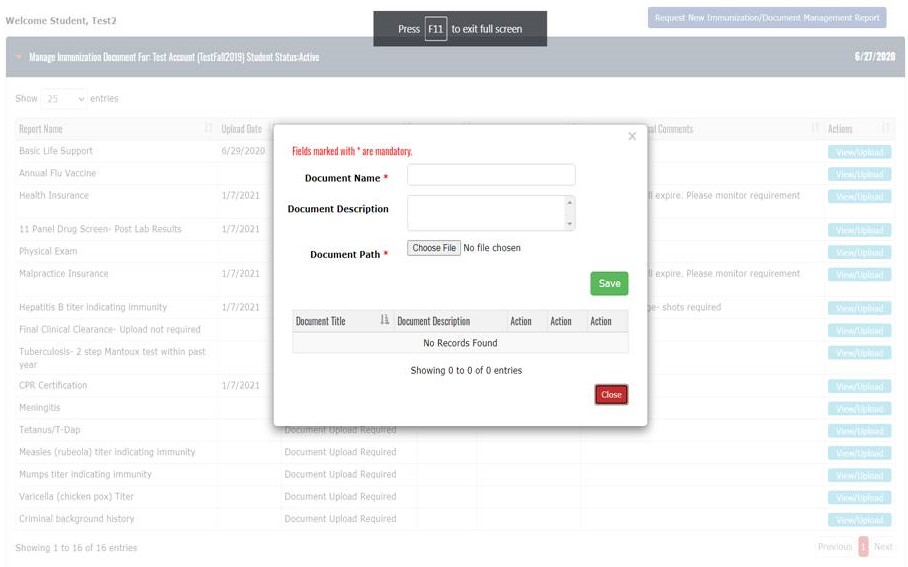
After clicking View/Upload, a document management box will appear. Include the name of the document and include a document description. Information entered by the student in this step will appear in the document management box in both the college administrator and student accounts.
The status for this document will change from “Document Upload Required” to “Pending Approval”.
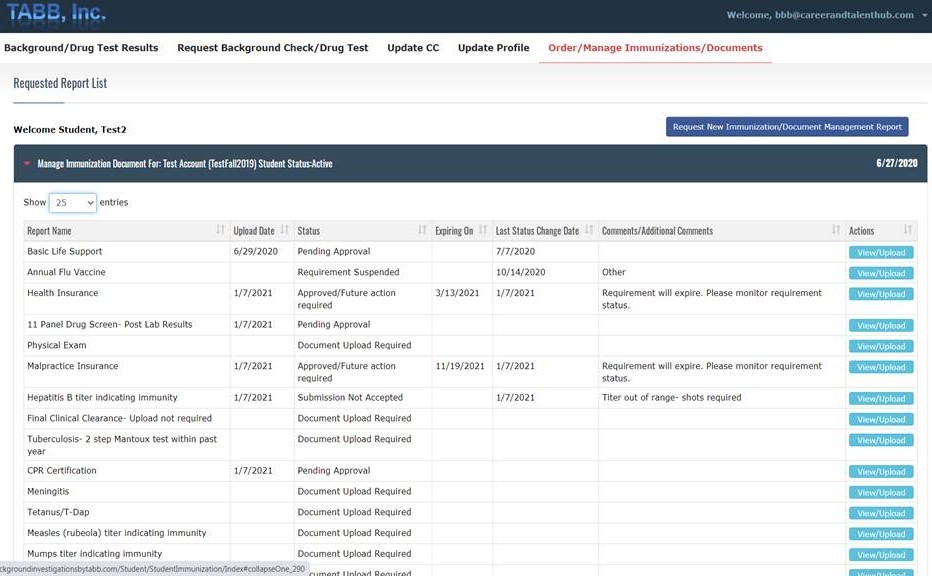
Upload Date, Status, Expiring On, Last Status Change Date, and Comments/Additional Comments help you manage your program’s requirements. The individual reviewing your submission will “Approve” or mark the status of the upload as “Submission Not Accepted” and will add text to provide additional instructions or comments for you.
To uphold the integrity of the process, you cannot delete any document you have uploaded. Only a college administrator or a Pre-Employment Screening Solutions Student Account manager can delete a document submitted by a student.
You will receive an email every time the status of a requirement changes. If the submission is rejected, the email will include the reason for the rejection. You will receive expiration notices for requirements that expire. The email will include the name of the item that is expiring, its expiration date, and a notification that further action is required.
Questions? Please contact: Allison Anderson at 908-660-0847 or email allisonanderson@screeningsolutions.net